← All posts
OKTA Identity Provider Integration with Britive | Getting Started Guide
You can use Britive Terraform to manage Okta as an identity provider and to provision SCIM users, but with some important clarifications:
✅ Okta Integration with Britive
Britive supports integration with Okta for both:
- SSO via SAML (Okta as an identity provider)
- User provisioning via SCIM (Okta to Britive)
To set this up:
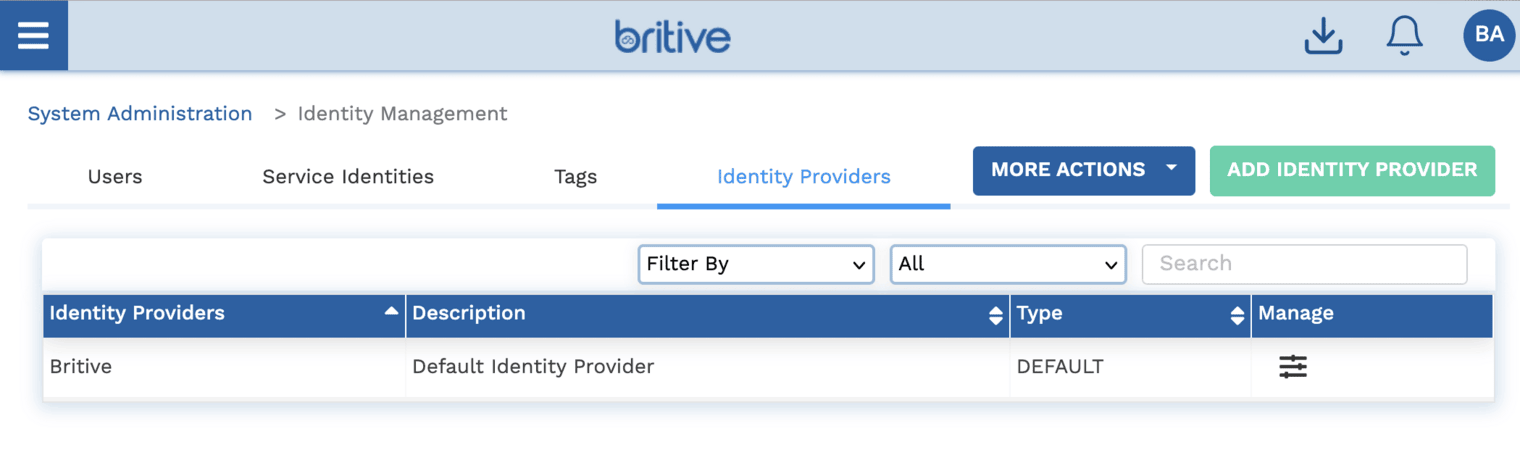
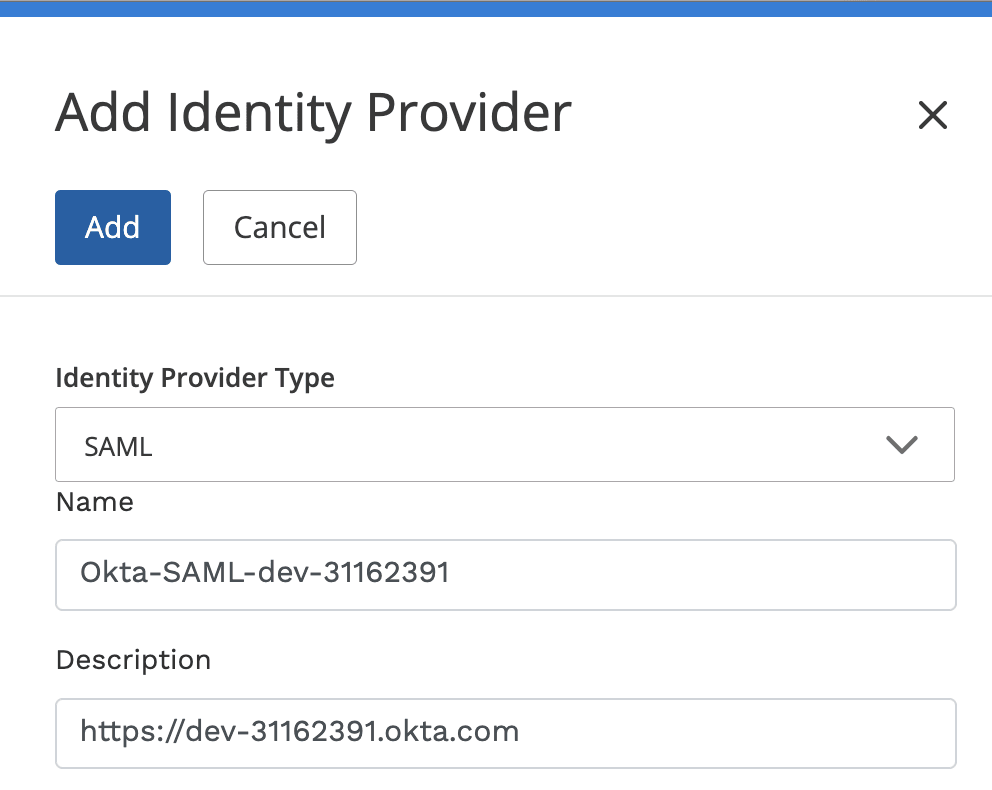
- Create an Identity Provider in Britive: * Go to Admin → Identity Management → Identity Providers. * Add a new provider with type SAML for Okta.
- Enable SCIM Provisioning: * In Britive, go to the SCIM tab and configure a Generic SCIM provider. * Generate a SCIM URL and Bearer Token. * Use these in Okta to configure SCIM provisioning.
- Map User Attributes:
* Britive requires attributes like
Email,First Name,Last Name,Username, andStatus. * You can also map additional attributes 1.
–> Add Identity Provider
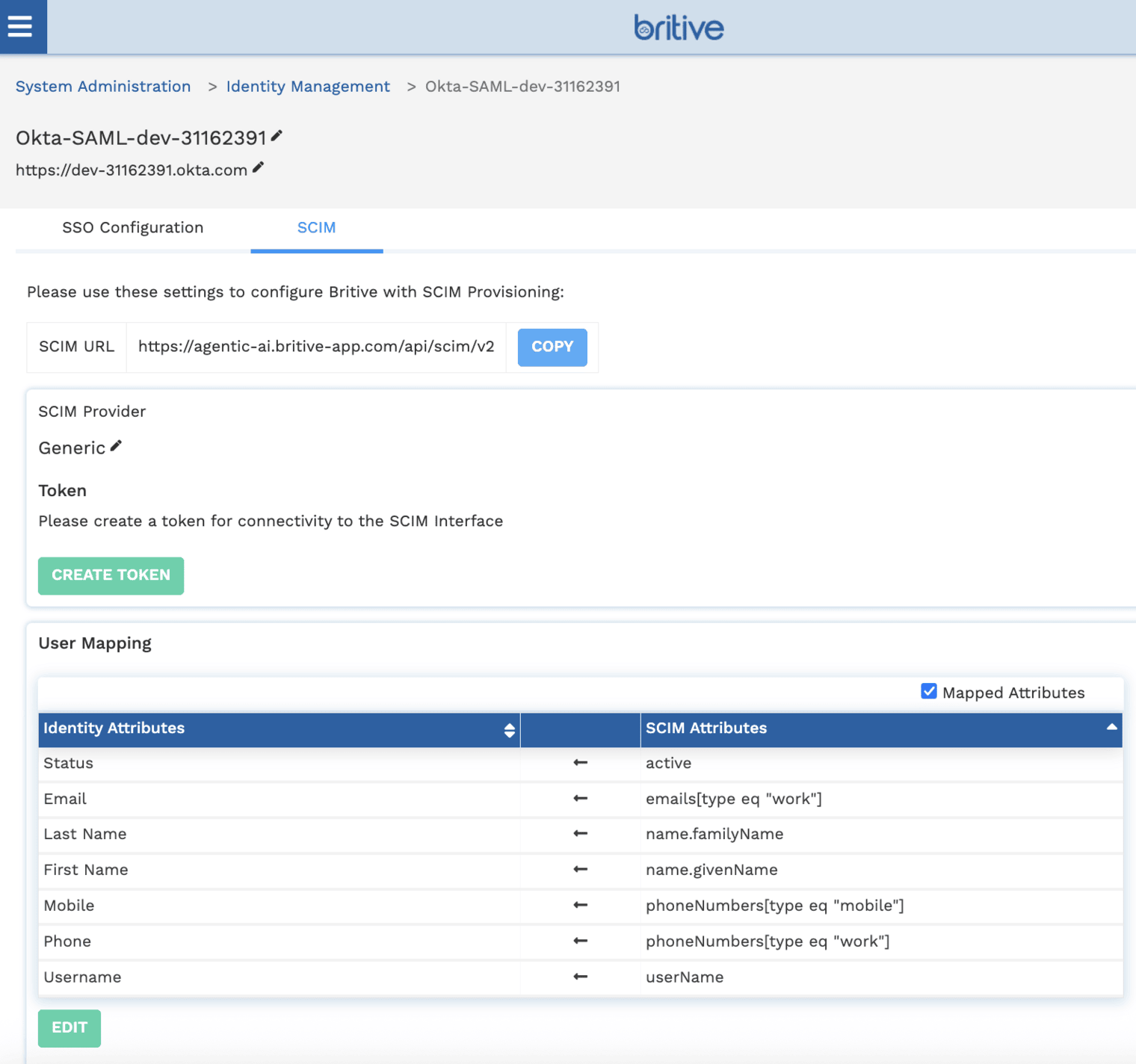
Now click on “CREATE TOKEN” with 90 days rotation option. Now it will look like following
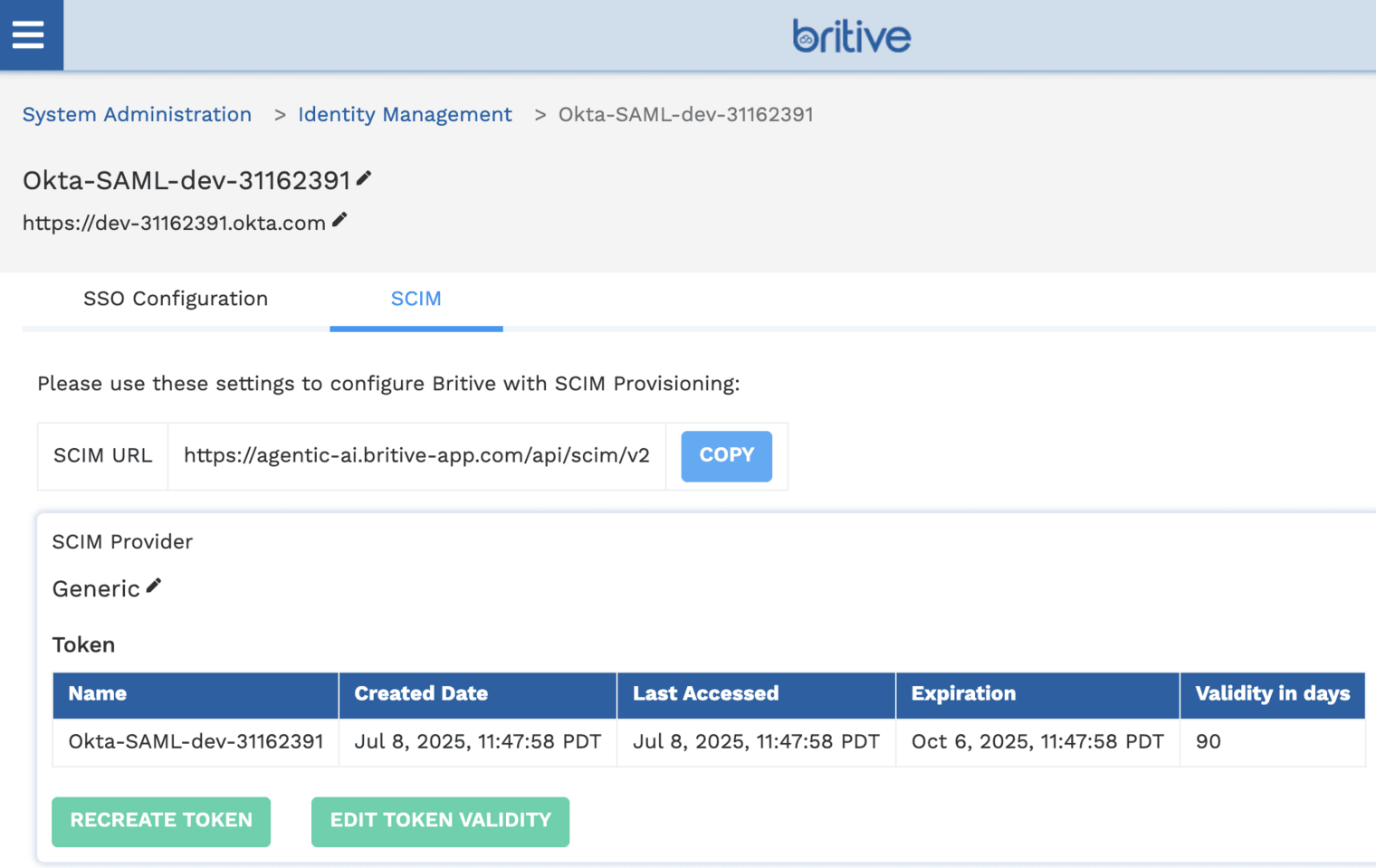
OKTA Side Setting for SCIM
Step 1: Create a SAML Application in Okta
- Log in to Okta Admin Console.
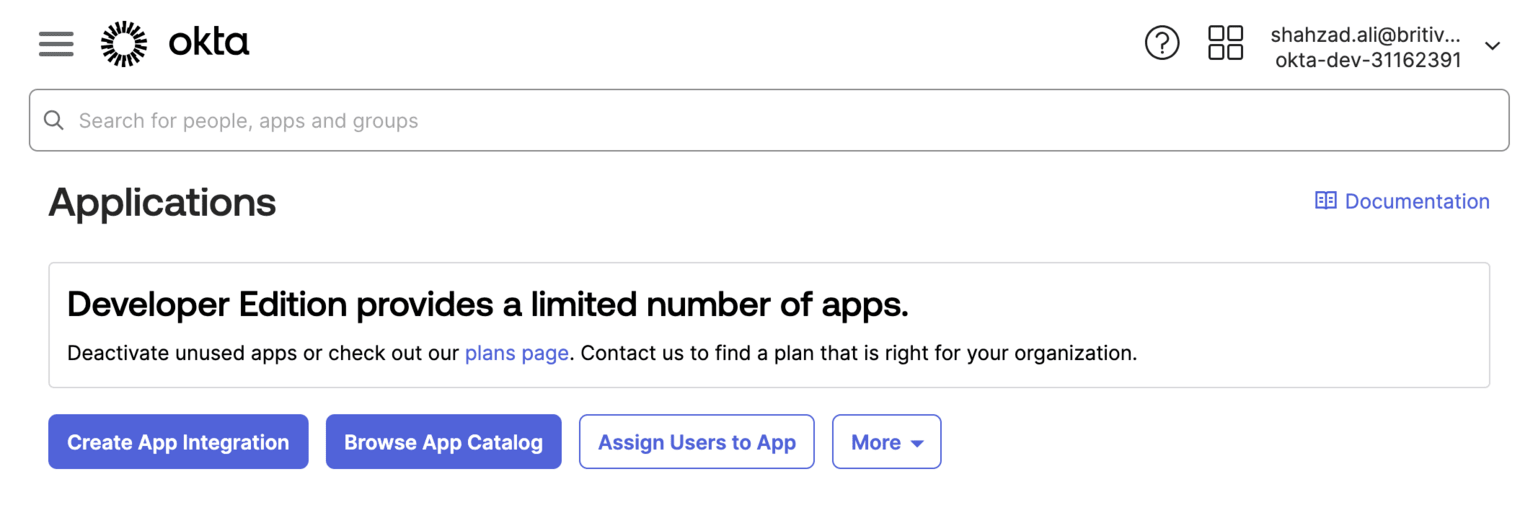
- Navigate to Applications → Applications.
- Click Create App Integration.
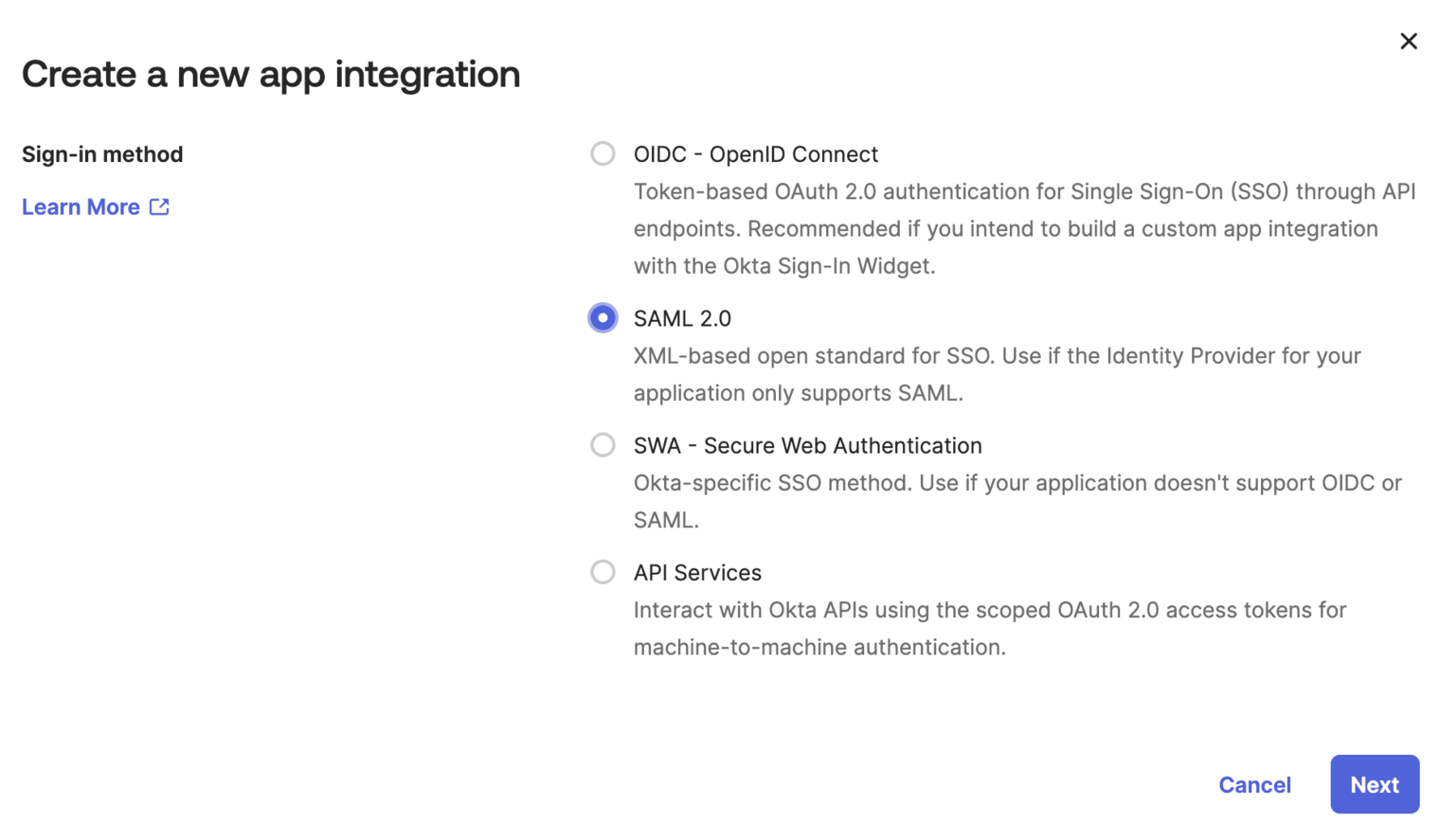
- Choose SAML 2.0 and click Next.
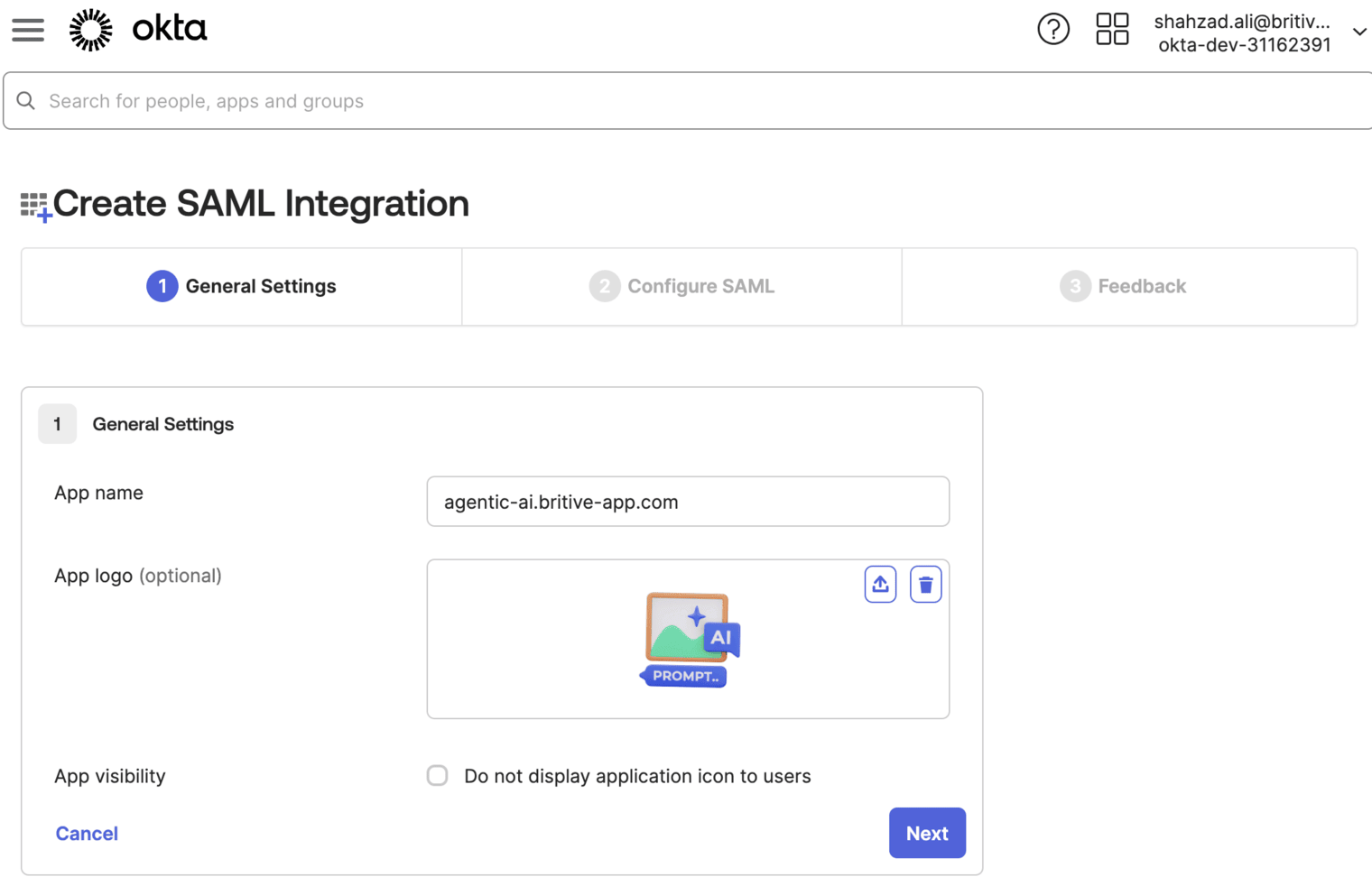
- Fill in the General Settings:
* App name:
Britive* App logo (optional)
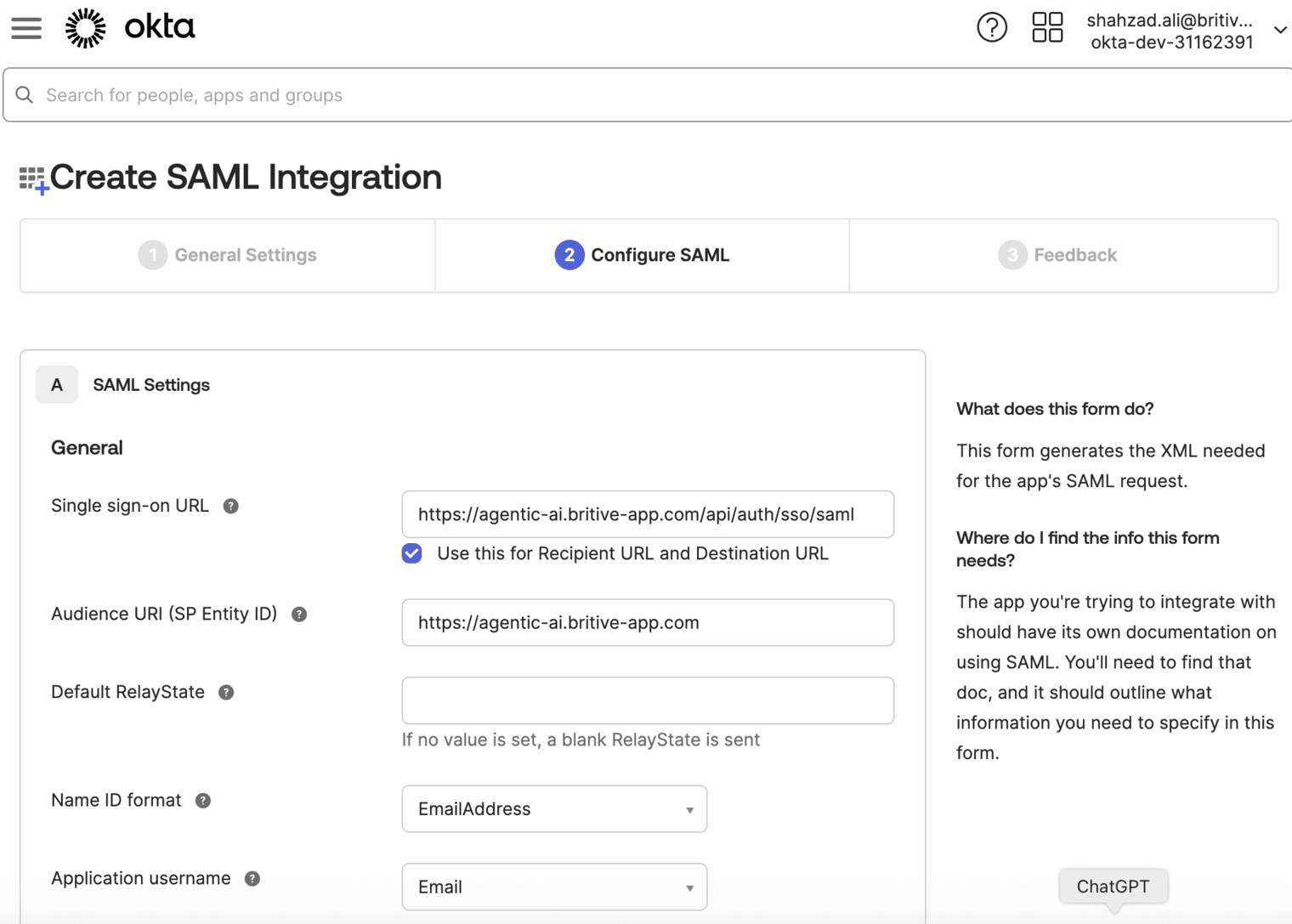
Step 2: Configure OKTA SAML Settings
In the SAML Settings section:
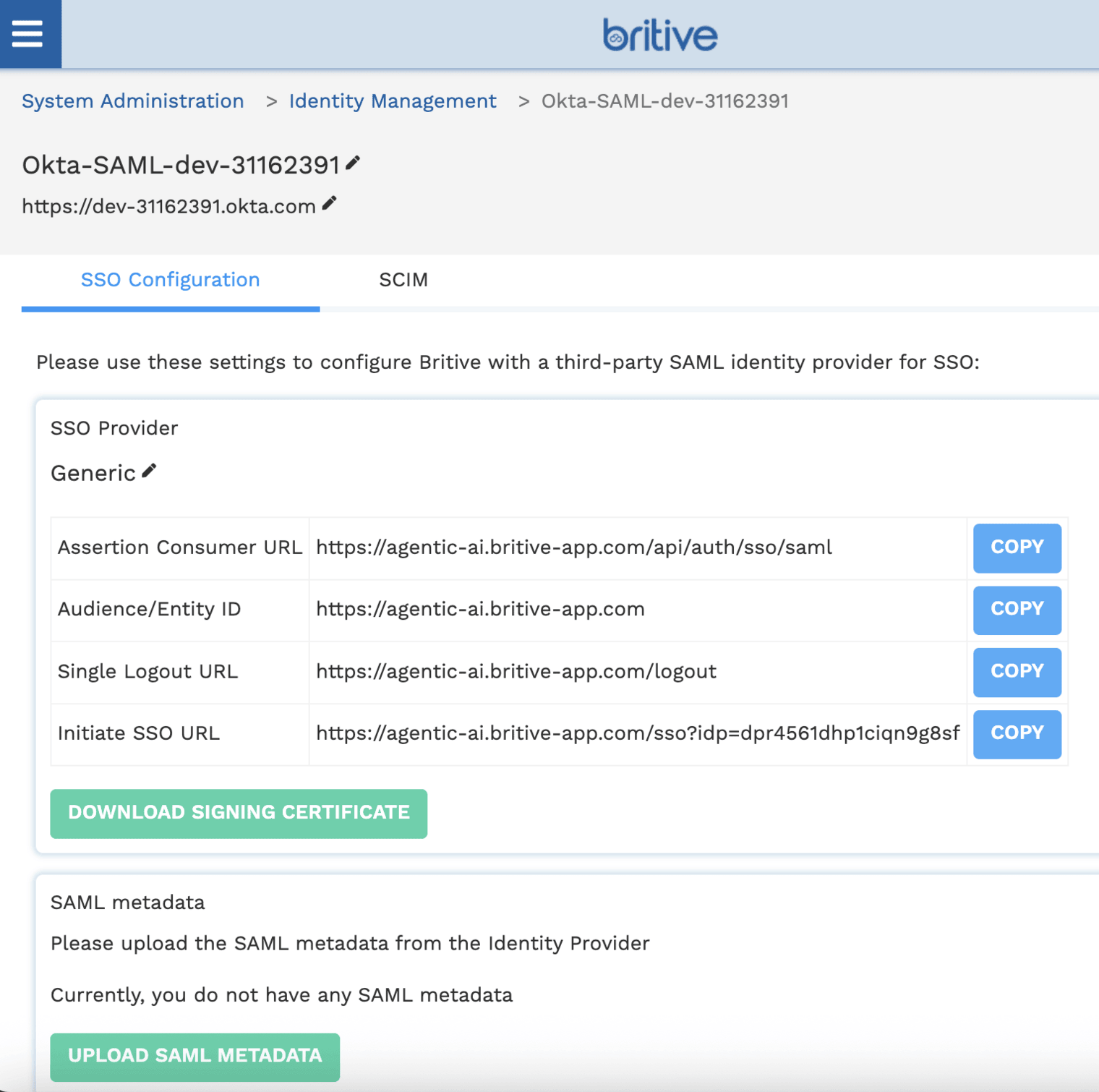
- Single sign-on URL:
Get this from Britive (e.g.,https://<your-tenant>.britive-app.com/sso/saml/acs) - Audience URI (SP Entity ID):
Also from Britive (e.g.,https://<your-tenant>.britive-app.com/sso/saml/metadata) - Name ID format:
EmailAddress - Application username:
Email
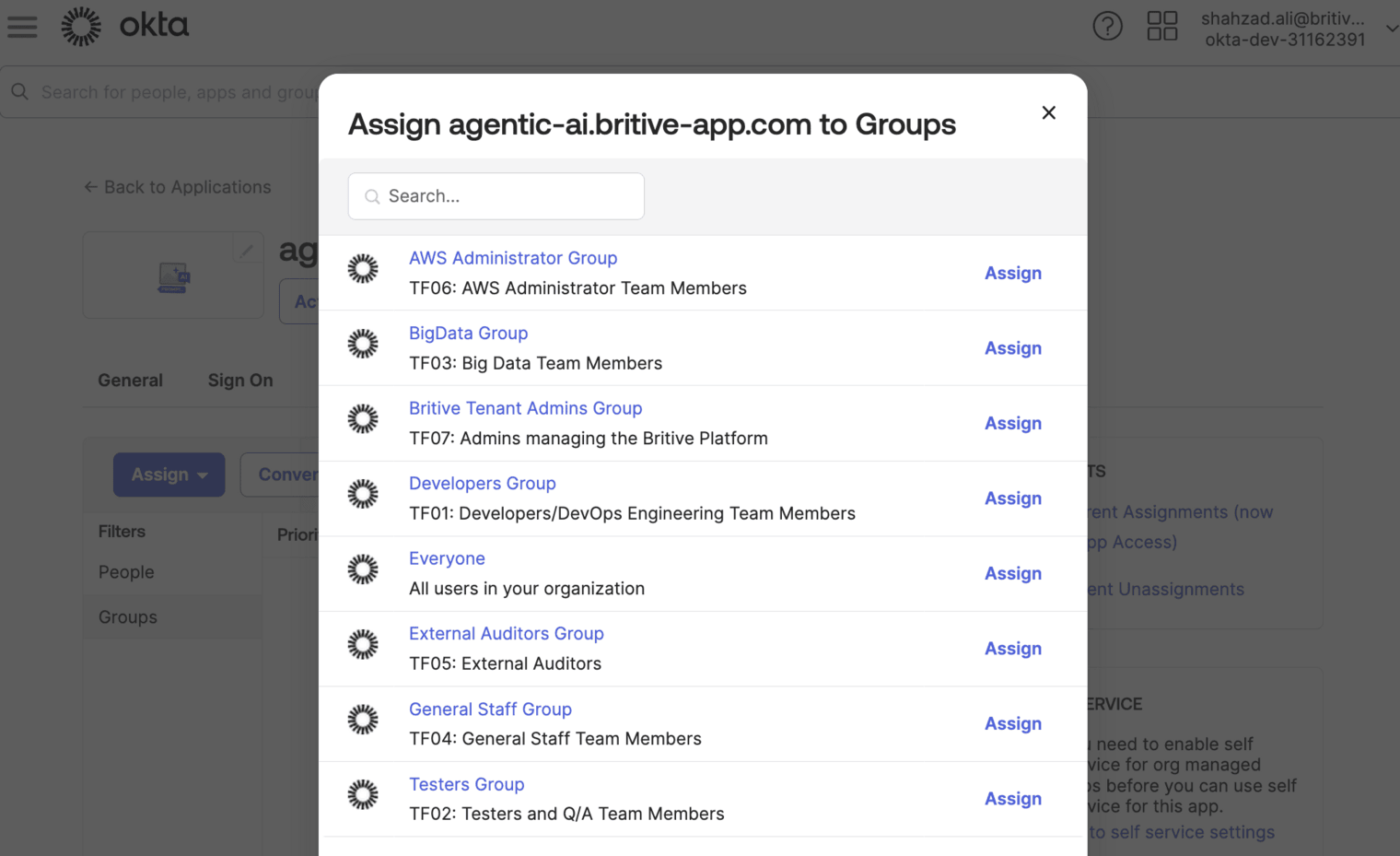
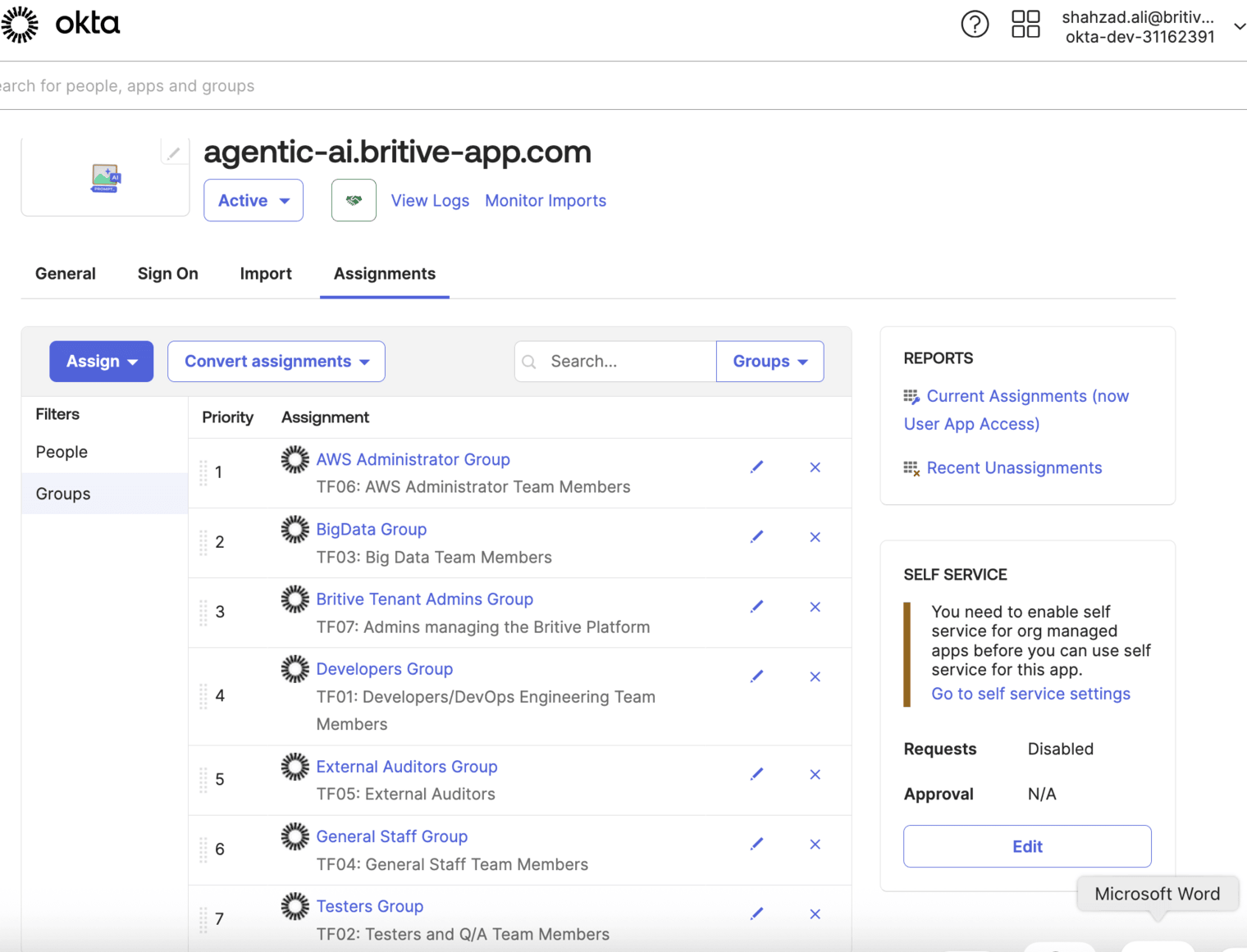
Step 3: Assign OKTA Users to the App
- Go to the Assignments tab.
- Assign users or groups who should have access to Britive.
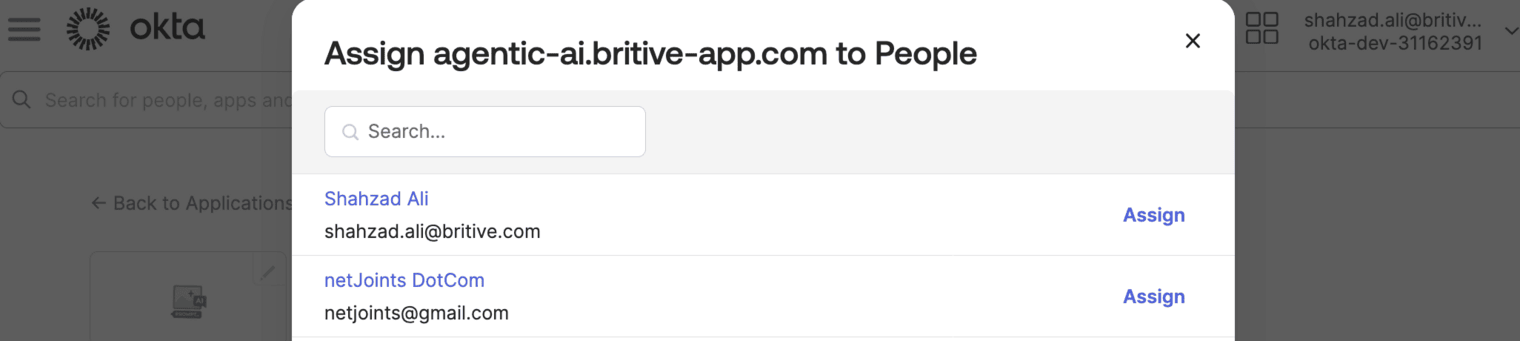
We will use group assignment option.
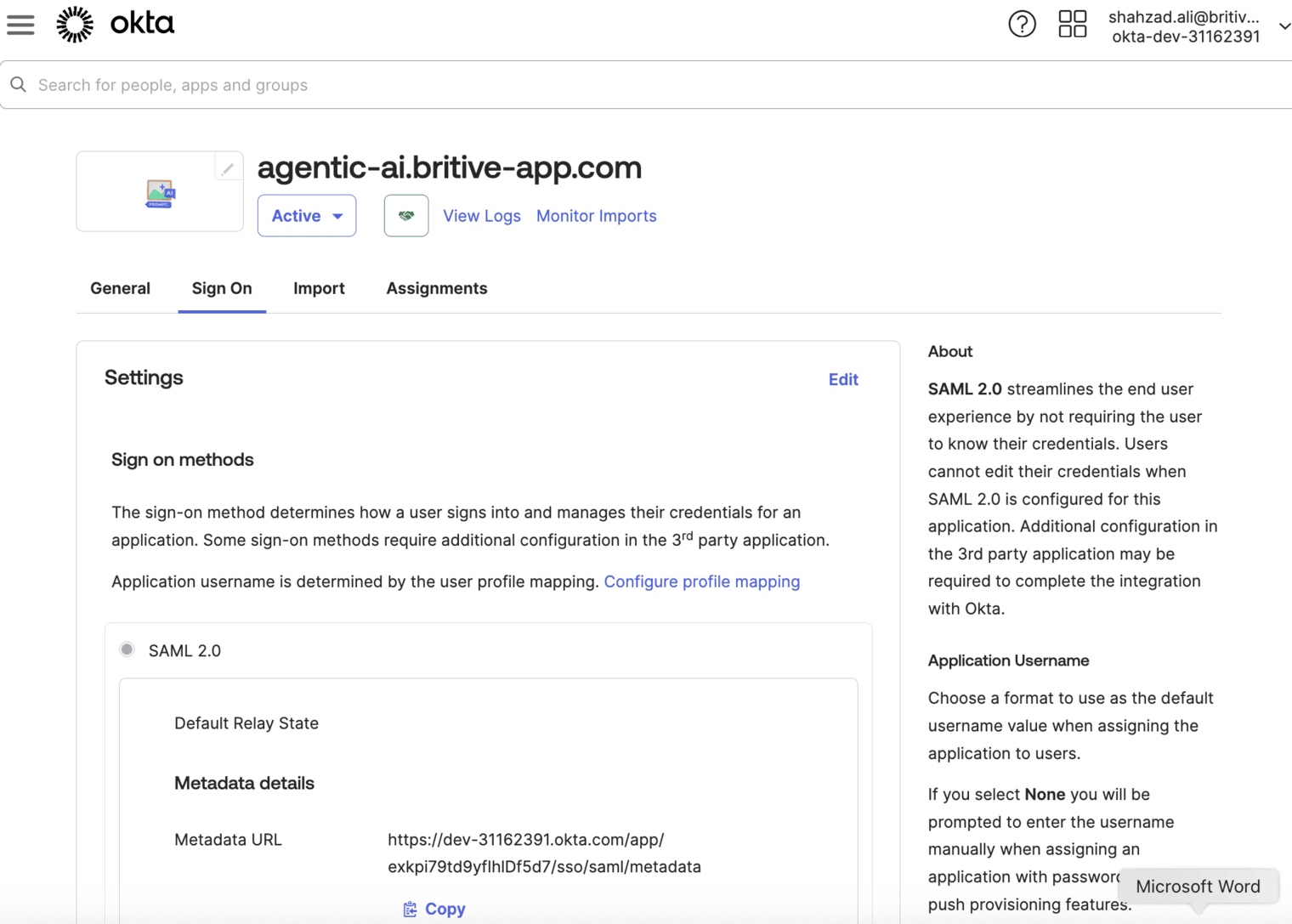
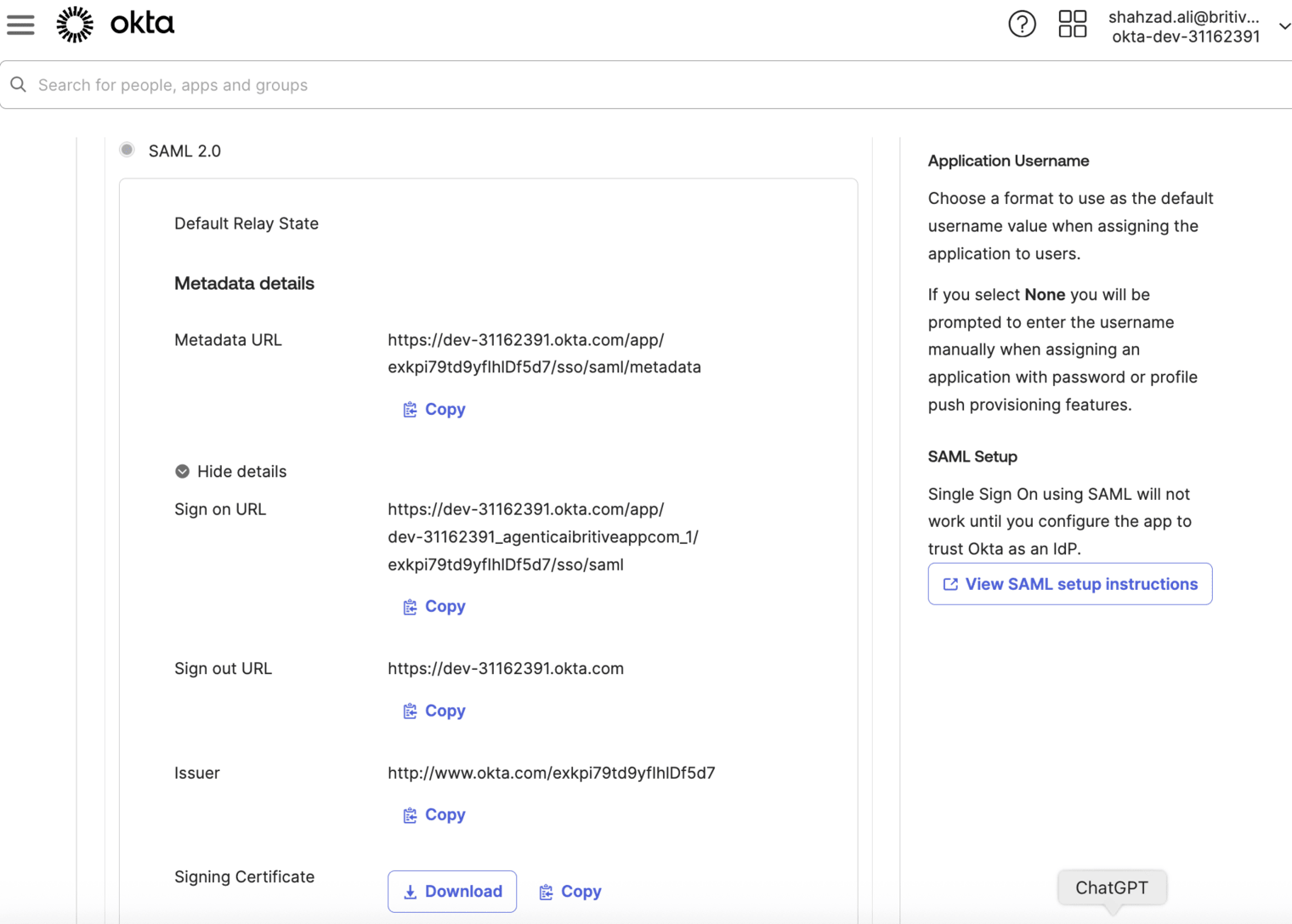
Step 4: Download Metadata
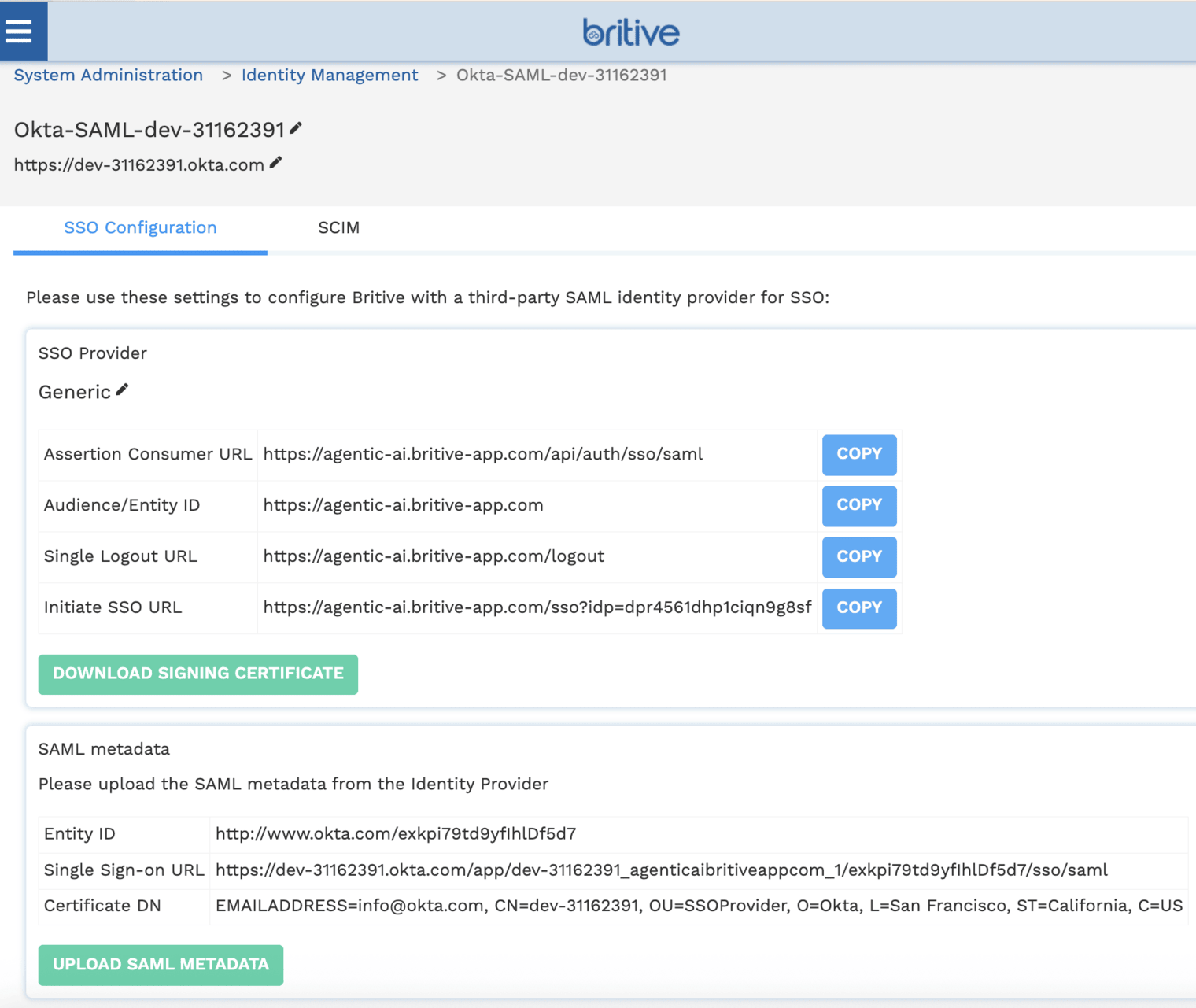
- In the app settings, click Sign On tab.
- Click View SAML setup instructions.
- Copy the Metadata URL or download the XML file.
- Use this in your Terraform config or Britive UI.
Step 5: Configure SCIM
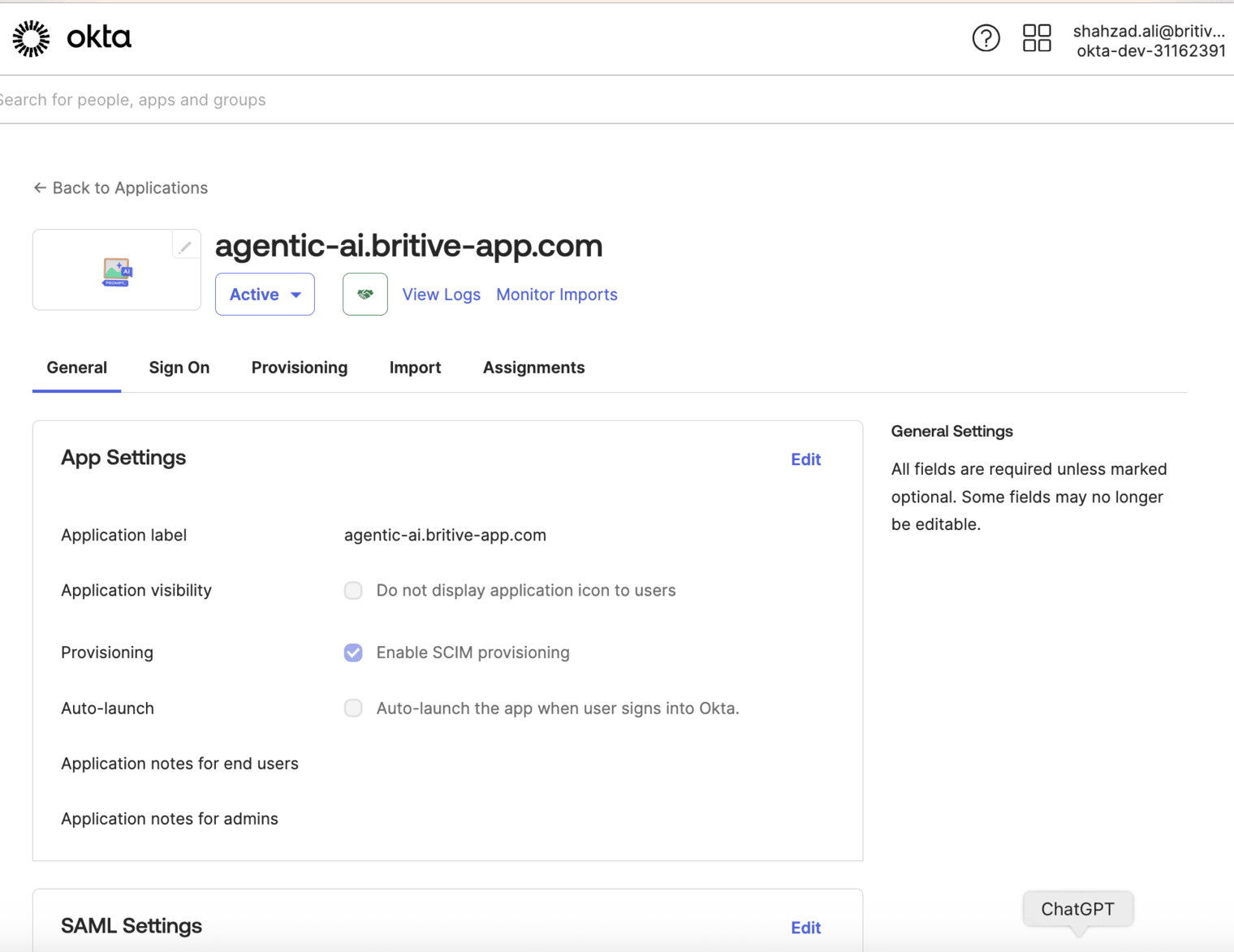
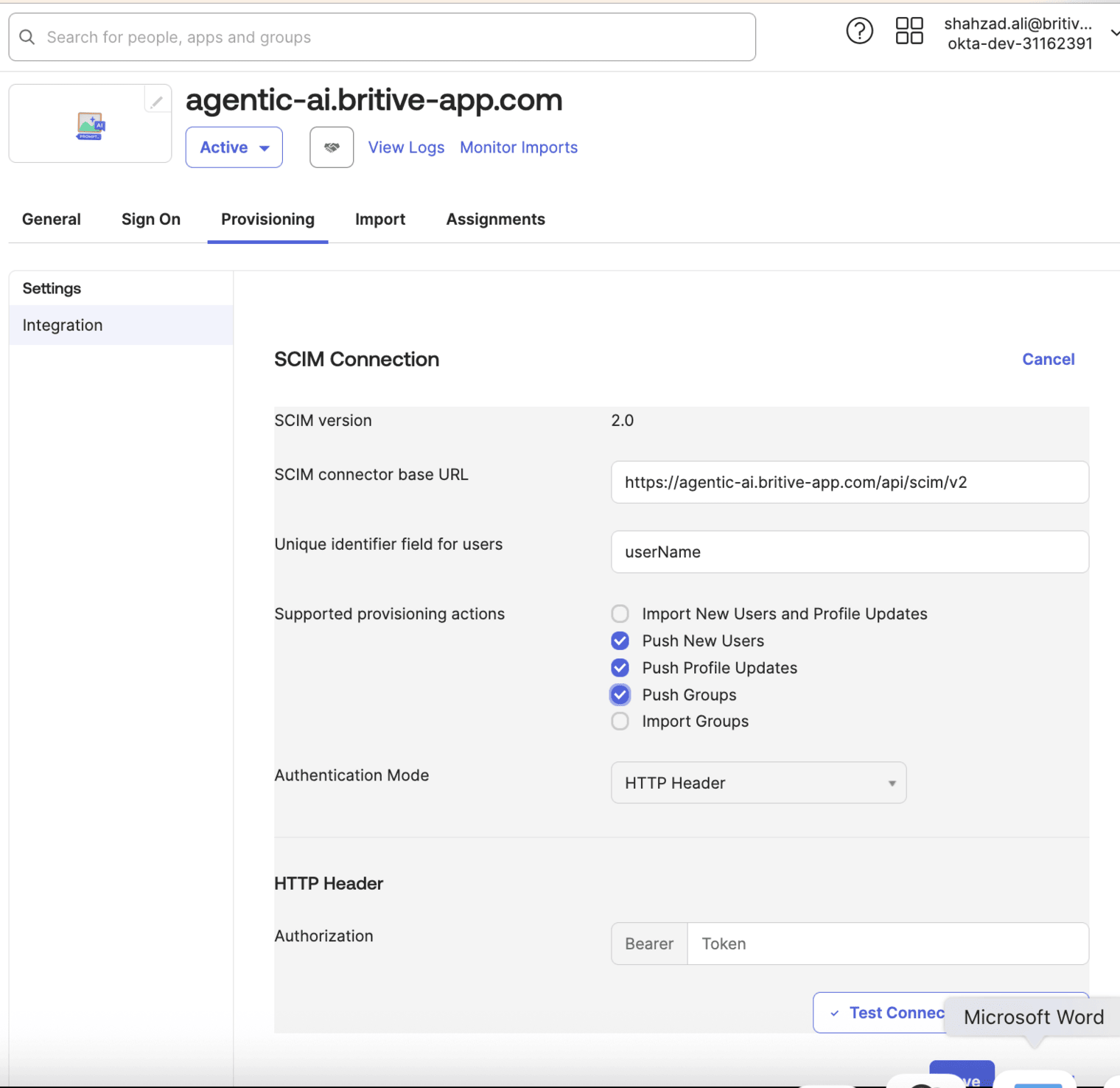
- In Okta, go to the Britive app → Provisioning tab.
- Click Configure API Integration.
- Enable SCIM and enter: * SCIM Base URL: From Britive SCIM settings * Bearer Token: From Britive SCIM settings
- Test the connection.
- Enable provisioning features: * Create Users * Update User Attributes * Deactivate Users
Terraform Support
The Britive Terraform provider allows you to manage many Britive resources, including:
- Identity providers
- Permission sets
- Groups
- Roles
However, SCIM provisioning and user management via Okta is typically configured outside of Terraform, directly in the Okta and Britive admin consoles. The Terraform provider is more focused on managing Britive-native configurations and policies
Summary
- Yes, you can integrate Okta as an identity provider and use SCIM for user provisioning in Britive.
- Terraform can manage Britive configurations, but SCIM setup is manual via the Britive and Okta UIs.